Pages

8.25.2015

Google Drive High CPU usage

Ummm, why does my computer sound like a scaled down jet airplane about to take off?  Oh, just Google Drive running away trying to upload files while I don't have an internet connection.

Google Drive building up pressure with no Intertubes to vent with

As soon as I restore my internet connection by tethering my phone, Google Drive calms down again.  

Google Drive with internet connection

For those interested in collecting bug samples from the wild:
Google Drive OSX App version: 1.24.9931.5480
OSX Version 10.10.4

5.23.2015

iPhoto sucked, Photos sucks more, use Unbound instead

 As an aspiring photographer, I take a lot of pictures.   When I'm done shooting I need a place to import and organize my photos.  Like most Mac users, I used iPhoto and later Photos because they were included with the system.  But iPhoto and Photos have been nothing but a pain in the ass for me.

iPhoto started to suck right around the time I started shooting in RAW.  The import process was unbearably slow.  It was a throwback to the dial up days when you'd go make some coffee while waiting for the page to load.  iPhoto often took 10 minutes or more to import less than 100 pictures.  During the import process, iPhoto would peg all my CPU cores to 100% making my Macbook Pro lag like a bargain bin Android tablet.

Photos was only a slight improvement in that regard.  The import process was much quicker. However, the entire time Photos was open my CPU usage was always around 100% on one or two cores.  This essentially makes Photos useless on a laptop without having a charger nearby.  That kind of power consumption is just not acceptable for a photo viewing app.

Unbound for Mac seems like the best alternative. I don't need the editing features that iPhoto or Photos have.  I just need a simple viewer and organizer that works.  Better yet, Unbound doesn't store the photo files inside of some blackbox folder structure.  It just leaves them the way they were on your machine.  Unbound is fast and simple and it just works.

12.13.2014

My perfect nginx config

Setting up web servers is a pain in the ass if you don't do it all the time.  I don't.  So I've spent the last few days trying to figure out how to configure nginx.  I have an Amazon AWS instance running a couple of low traffic sites mainly for fun.  One site in particular had some special requirements. 
  • only the index.php file should ever be executed
  • no static files are served from this site (css/html/js)
This site has a couple of composer files in the site root, and I didn't want anyone to just be able to download them.  This site also runs on a framework that uses a "front controller", meaning that one PHP file dispatches and handles all the requests.  So here's the nginx config that I came up with to do just that.

With this configuration, here's what works and what doesn't:
These work as expected:
example.com/
example.com/api/who
example.com/index.php
example.com/index.php/api/who

These are 404ed as they should be:
example.com/composer.lock
example.com/SomePHPFile.php


 server {
        listen 80;

        root /var/www/example;

        server_name example.com;

#direct all traffic to the front controller after trying files
    location / {
        index index.php;
        try_files $uri $uri/ /index.php?$args;
   }


#only redirects to the front controller will be processed.
    location ~ index\.php {
        fastcgi_pass   unix:/var/run/php5-fpm.sock;
        fastcgi_index index.php;
        include fastcgi_params;
        fastcgi_param  SCRIPT_FILENAME $document_root$fastcgi_script_name;

    }


#any path which is an actual file will get a 404
    location ~ (\.[^/]+)$ {
        return 404;
    }

}


8.11.2014

rsync WTF

During the process of setting up my NAS box over the weekend, I discovered a curious thing about rsync.  The options that everyone on the internet seems to use, ("-avz") actually slow down the performance of rsync over LAN.  By slow down, I mean 20 MBps over gigabit ethernet. Theoretically, Gig-E can handle ~125 MBps.   Fortunately, the solution was simple.  Dropping the "z" flag (z enables compression) sped up my transfers to around 70 MBps.  

TLDR; use rsync -av, not rsync -avz

For those interested in the relevant details of my setup: I was using rsync to copy files locally from my Macbook to an SMB  mount point.  I'd also tested the speeds of rsync using the rsync protocol (rather than copying to a mounted volume) and they were equally poky.  NFS didn't fare much better.  It seemed to cap out around 40 MBps.   Strangely, SMB seems to be the fastest protocol for copying files in my setup.  Finder copies files even faster than rsync, pulling around 100 MBps.  My NAS box is a dual core Athlon X2 @3 GHz. I've got 4x 2 TB hard drives in RAID Z2 (RAID6) for a total of 4TB usable storage. 

6.19.2014

Refresh your Android wallpaper

I get sick of looking at the same background on my phone day after day.  (The same goes for my computer.) Interfacelift.com has always been my go to site for really amazing photography fit for desktop wallpapers.  Unfortunately, they don't have an Android app and going to the website all the time on my phone is a pain in the ass.  Enter my solution: Refresh.

Refresh is a stupid simple Android app that brings all the goodness of interfacelift.com to your Android phone (or tablet).   Simply scroll through a list of wallpapers and pick the ones you like.  Download them to your phone, or set them as your background right away.  The latest version of Refresh will automatically cycle through all the wallpapers you've downloaded.  Every time you turn the screen on, you'll be looking at a different wallpaper.

Check it out on the Google Play store.  I'm open to suggestions for new features and of course bug reports.  (I hate ads as much as the next person, but it's not free to use interfacelift.com's API.  I tried to make them as unobtrusive as possible.)


5.03.2014

Beware of commas in For loops

In a C like language, we can declare a for loop as such:
for(pre; condition; post)
where "pre" is something that happens before the loop starts, "condition" is a check that happens before each run of the loop, and "post" happens after each time through the loop. We can get even more fancy and do more than one of each of these. For example, we could have this:
for(pre1, pre2; cond1, cond2; post1, post2)

In this case, "pre1" and "pre2" happen before the loop, "cond1" and "cond2" are evaluated before each run of the loop, and "post1" and "post2" happen after each run of the loop.

Be careful however when placing commas between the conditions.  This may cause unexpected behavior in your program.  When conditions are separated by commas, they are evaluated as OR.  This would be the same as cond1 OR cond2. In my recent C programming adventures, I spent a non-trivial amount of time tracking down this misbehavior. Eventually, I changed the comma to the explicit AND operator and everything worked as expected.  For those interested, the line was as follows:

This causes problems:
for(i = 0; i < index, cur != head; i++, cur = cur->next);
This works the way I want:
for(i = 0; i < index && cur != head; i++, cur = cur->next);

4.01.2014

Two loops you didn't know about

Most of us that program are familiar with a few basic types of loops.  We all know the while loop, the for loop, the "for each" loop and the "do while" loop.   Today you'll learn about two little used loops that are built into many modern languages.  I'll show you the pseudo code for the constructs.

Everybody has written some sort of program that got stuck in an infinite loop.  More than likely you wrote a while loop where the condition never became false.  It's possible to write and infinite "for each" loop, but it just takes more work. If you find yourself needing an infinite "for each" loop, you could instead use the special "for ever" loop construct.  This loop is especially handy when you want to iterate through a list infinitely.  The forever loop will iterate through your collection and start right over at the beginning.

forever ( theList : listItem ) {
    //do some stuff
}

The next obscure loop is similar to a "do while" loop.  The do while loop executes the body of the loop once, evaluates the conditional, and executes the body again until the condition is false.  The "don't while" loop is slightly different.  The don't while loop skips over the body of the loop and evaluates the condition.  If the condition is true, the body of the loop is skipped, until the condition becomes false at which point the loop body executes exactly once.

don't{

      //only executes once
     // after the condition is false

}while(condition)

Next time you're trying to write obscure barely functional code, consider using these special loops.  These loops are a really convenient way to confuse new programmers that look at your code.  Experienced programmers will be equally baffled by your decision to utilize such loops.  Happy April 1st!

3.17.2014

Keep your OSX workspaces in order

As an OSX user I frequently divide my work up into multiple workspaces.  I keep my email and chat program open on one, IDEs in another, and my browser in a third.  This is especially handy when working without a second monitor, because I can effortlessly swipe between workspace without having to click around to find my windows.


This system works really well until OSX decides to help me out by rearranging my workspaces automatically.  Expecting that my IDE is always to the left of my browser workspace, I swipe left only to find that my email and chat windows are now there.  This can get really annoying when I have 5 or 6 workspaces open, as I end up playing hide-and-seek with windows.


Thanks Mission Control, but I don't need your help.
Fortunately, the solution is simple.  Go into System Preferences >> Mission Control and uncheck the option for "Automatically rearrange Spaces based on most recent use".  Now you can arrange your workspaces without OSX trying to outsmart you. 

2.18.2014

I call BS...

A few weeks ago, I bought a pair of jeans from Sears at a local mall.  It has become common practice for retailers to email receipts to customers instead of printing four feet of paper.  Of course, in order to do this, they have to solicit your email address.  And when the cashier asked to my email address, I gave it to her.

In addition to receiving the receipt for my purchase, I was involuntarily signed up for spam.  Over a span of 11 days, I received 6 advertising emails from Sears.  The stupidest thing about the entire situation:  I unsubscribed after the second email.  Why do they keep sending me ads after I've told them I'm no longer interested?

A huge pile of shit
When I clicked the unsubscribe button on the website, I expected to see a message saying that I was unsubscribed and would no longer receive advertising emails.  Instead, Sears showed a popup saying that it would take 7 - 10 days to process my request.  If I weren't a computer science major, I might believe that.  In fact, any logical thinker could figure out that this is just a marketing tactic.

It's highly suspicious of them to quote "7-10 days" to unsubscribe, when it took them about 30 seconds to get me in the system in the first place.  Seriously, my phone was buzzing away with new emails before I reached my car.  I wonder, what about their system causes it to take 20,000 times longer to unsubscribe me for the list than it took to subscribe me in the first place?

Certainly, it's not a technical issue.  I don't know the exact workings of Sears email system, but it wouldn't be unreasonable to think that three or four SQL statements got me in the system.  Unsubscribing should be simpler: I'm thinking one SQL statement ought to drop me from the list.  The last time I checked, it didn't take 7 days to process a SQL command.  Unless they have to send a tech down to the data center to scrub my name off the hard drive with a Q-tip, this practice is inexcusable.

As I've deduced that there's not a technical factor at play here, the logical explanation is that the 7-10 day delay is simply a matter of policy.  This policy only serves one real purpose... to distribute more spam.  From the moment I click unsubscribe to when my name actually goes off the list is a window of opportunity to send me a few more emails.  Admittedly, this a great marketing tactic masquerading as a technical limitation.  It still doesn't make me hate spam any less though.  That four foot receipt might not be so bad after all.

2.08.2014

Making an endless list load smoothly in Android

In my latest Android app endeavor, I needed to create an endless list.  There's no built in class that does this, so I had to create something that would approximate one.  There are plenty of tutorials on the basic ideas behind endless lists, but none of them worked very well for my application.

My app is a viewer for interfacelift.com, which provides high quality wallpaper downloads.  The app displays a list of wallpapers in descending chronological order.  The user can continue scrolling indefinitely (until the site runs out of wallpapers).   The standard way of approaching the infinitely scrolling list tends to be glitchy when the next set of wallpapers loads.  I've come up with a simple solution to solve the glitchy-ness problem.

When the app loads a set of wallpapers, it adds them to an ArrayList, which is displayed by the ListView.  However, the list adapter doesn't know about the new wallpapers until it is explicitly told that the data set has changed with a call to notifyDataSetChanged().  When this happens, the list adapter is forced to update all of the views.  In my app's case, issuing a new view sets the ImageView's drawable to a placeholder, which is almost immediately replaced with the real image.  This causes the entire list to "jerk" when the existing images are updated.


Continue reading to see code solution.

11.11.2013

The quest for the perfect writing spot

Normally, I don't need any extra motivation to write an article here.  I enjoy writing techie articles that four people a month read.  Writing papers for English class is a bit different.  It's more challenging.  I have no aversion to being challenged, it just takes a bit more motivation to get going.  Today I set out leaving the comfort of my own apartment and find the perfect spot in Spokane to jump start my writing mojo.

As a coffee lover, it was only natural that I seek out a coffee shop to conduct my work.  I tossed my Macbook in my backpack and set foot toward the nearest bus stop.  My bus trip ended in downtown Spokane, near River Park square.  I didn't have any predetermined coffee destinations in mind, the only criteria was to avoid Starbucks.  I realize that these establishments are businesses, not temporary offices, and thus limited my stays to around an hour.

The first stop of the day: Thomas Hammer in downtown Spokane.  I ordered my favorite non-latte drink, the Fireball (no, it doesn't have Fireball whiskey in it).  This drink is essentially a mocha, with a shot of orange syrup in it.  It is weirdly delicious.  The barista even made latte art in the drink, but sadly I wasn't able to admire its beauty as she covered it with the lid immediately after pouring it, though the imprint of the art was visible through the lid for a few fleeting moments.  Aside from a few noisy patrons, the environment was fine for productivity.  I didn't need to squirm in the chair, as the seating was quite comfortable.  There were no power outlets to be found. Fortunately, my machine had enough charge to get me through an hour, after which I left to avoid overstaying my welcome.  Thomas Hammer had Wi-Fi, but it was password protected, so I used my Nexus 4 as a hotspot instead.

About three blocks away, I found the Brews Brothers coffee shop, a place with a friendly atmosphere and chatty customers.  The barista there seemed to know a lot of the customers by name, indicating that many of them were regulars, a good sign indeed.  This time I ordered a chai latte, and that's all I have to say about that.  This time, I was able to situate within reach of a power outlet.  Again, Wi-Fi was password protected, so I whipped out my phone once again.  The atmosphere here was much more conducive to writing.  There space was large enough to dissipate the individual conversations and native noises of a coffee shop.

Finally, after wandering the blocks for a few minutes after lunch, I located Atticus.  This joint was by far the busiest of three I had visited today, and it was 2 PM.  Admittedly, much of the traffic in the store was on the gift shop side, but there was still about 20 people occupying tables and enjoying coffee.  I ordered a plain latte this time, which was the cheapest drink I bought at $2.99 after tax.  Atticus expects a certain volume of sit down customers, serving drinks in ceramic mugs if you choose to stay.  Props to them for saving the environment and saving money on cups.  Now that I had my latte, I needed a place to sit.  All of the individual tables were taken, leaving me to take a chair at one of the large group tables.  These tables are an open invitation for group activities, as every time I've been to this establishment, there were groups of teenagers doing homework at the tables.  Atticus even posts signs on the tables to the tune of "We are a business, not a study hall or an office. Please don't hog the seating."  Despite the bustling atmosphere, I was able to get some work done here.  And the latte was decent.

It should be noted that none of these places had open Wi-fi, though it was free at all of them.  It seems that coffee houses are either WPA protecting their Wi-Fi to stop people from squatting or give patrons better security.  If I owned a coffee shop, I'd probably do the same.

Of the three shops I sampled today, I would be most likely to return to Brews Brother to get some work done.   Lots of seating options and a large(ish) room made this place desirable for getting work done.  Naturally, I'd order a drink that wasn't a pre-made chai tea, as pre-made chai is just too sweet for my taste.

10.26.2013

Java Comparator vs Comparable

The Comparable and Comparator interface both let objects in Java be sorted, but go about it in different ways. Let's say that you are a sort method, and I pass you a collection of beer. Using comparable (built into the beer) you can sort the beer by name. Duh, it's on the bottle.

But what if I ask you to sort my beer by temperature, coldest first? I would need to provide you with a tool (a comparator) , in this case, an infrared temperature sensor in order for you to accomplish the task. Using the temperature sensor I've provided you, it's now possible to sort the beer by temperature.

Similarly, if I asked you to sort beer by alcohol content, I would need to give you a hydrometer to check the specific gravity. This is akin to yet another comparator. Notice that none of these comparators are built into the beer itself.

Have a look at an example I've whipped up. Download the files from drive and compile them using javac *.java on your machine. Then run the one called BeerFridge.java using the command java BeerFridge

10.24.2013

How to lock the screen in OSX

From day one of Mac ownership, one glaring omission has really bothered me.   There's no obvious way to initiate the screen saver or turn off the screen in order to lock the machine.  Locking the screen is a modern must-do in any environment.  Every other OS places this option in plain sight making it impossible to overlook.  With OSX, both options are obscurely hidden enough that no casual user would ever find them without Googling or mashing random key combinations for half an hour.

I'm here to tell you how to do both things.  First the easy one. To turn the screen off, effectively locking the machine, press Control + Shift + Eject on your Mac keyboard.  The more difficult trick is locking the screen by starting the screen saver.  Open up Keychain Access (hint: it's under Apps>Utilities) and choose Preferences from the menu bar.  Now check the box for "Show keychain status in menu bar."  You will now see a little lock shaped icon in the menu bar that allows you to lock the screen.


10.23.2013

OSX Mavericks

It's about time... OSX Mavericks addresses some pretty serious issues I've had with my Mac since day one.  Why these things took so long to be included in OSX is beyond me.  The two new features I'm interested in are the improved handling of dual monitors and the battery graphing feature in Activity Monitor.  

The ability to hide the unnecessary GUI clutter with full screen app is pretty nifty indeed, but I never used it. In the past two versions of OSX, full screening an app with dual monitors caused the app to take over one monitor (expected) and the OS to render a worthless gray texture on the other (WTF).  Full screening an app now leaves the other monitor free to display other programs, the reason why I bought the second monitor to begin with.  Also, the menu bar is now displayed on both monitors instead of only the primary monitor. 

The second irksome issue Apple addressed was that of battery time tracking.  I can see how long my phone has been on battery, so why couldn't I do this on my Mac?   Now Activity Monitor includes a graph of the machine's battery charge over time, so I can see how long my battery has actually been running my machine, instead of just guessing. This pleases me in a very nerdy control freak sort of way. I'm sure there are others out there that will appreciate this new feature.  

There's not a whole lot to lose by upgrading to Mavericks; hell, it's free, and it runs on machines made back in 2007.  It's nice to get a free upgrade every once in a while, especially after having to deal with Mountain Lion for the last year.  


10.06.2013

Make Eclipse Create Zips of Your Source Automatically

For all of my university programming classes, I have to turn in a zip file with my source code.  It isn't a big deal to create a zip file when I'm done, but occasionally I submit multiple iterations before I'm finally satisfied.  In those instances, creating zip files manually through finder is tedious.

To solve this problem, I created a very simple shell script and integrated it into Eclipse.  Eclipse will run the script automatically every time any files in the project are saved or created.  This way, my zip file always contains the most up-to-date source files.

To get started, you'll need to create a shell script by copying and pasting the following lines into an empty file, then save the file and make it executable using chmod 755 filename.

#! /bin/bash
#Prefix to prepend to dirname, used for naming the zip file
UNAME=$1
#get the name of the directory this is being run from
PROJECTNAME=$2
zip $UNAME$PROJECTNAME src/*.java

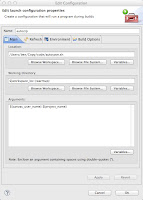
Once you've got the script saved in a safe place, open up your project in Eclipse.  (Note that I name my projects according to the assignment.)  Right click on your project in the Package Explorer pane and select Properties.  Choose the Builders link from the list on the left.  Click the New button on the right.  Select Program from the next window that appears.  Give your new configuration a name.  Click Browse Filesystem and find your script for the first blank.  Then Browse Workspace and pick your project for the "Working Directory" blank.  At the bottom: Variables >> Edit Variables >> New.  Name your variable something descriptive, like canvas_user_name, and provide a value, like daschelb. Then click OK >> OK, then select your new variable and click OK once more.  Click variables again, only this time choose the one named project_name.  Make sure there is a space between the variables in the "Arguments" area.  


Next click the Refresh tab and check the box for Refresh resources upon completion and tick the radio button for The project containing the selected resources. Forget about the Refresh tab.  Those settings seem to cause an infinite loop of recompiling. 


Finally click the Build Options tab and select Launch in background and During auto builds.


That's it. Eclipse will now start generating a zip file for you every time it compiles your code. (BTW, the script places the zip in the root of your project folder.)